
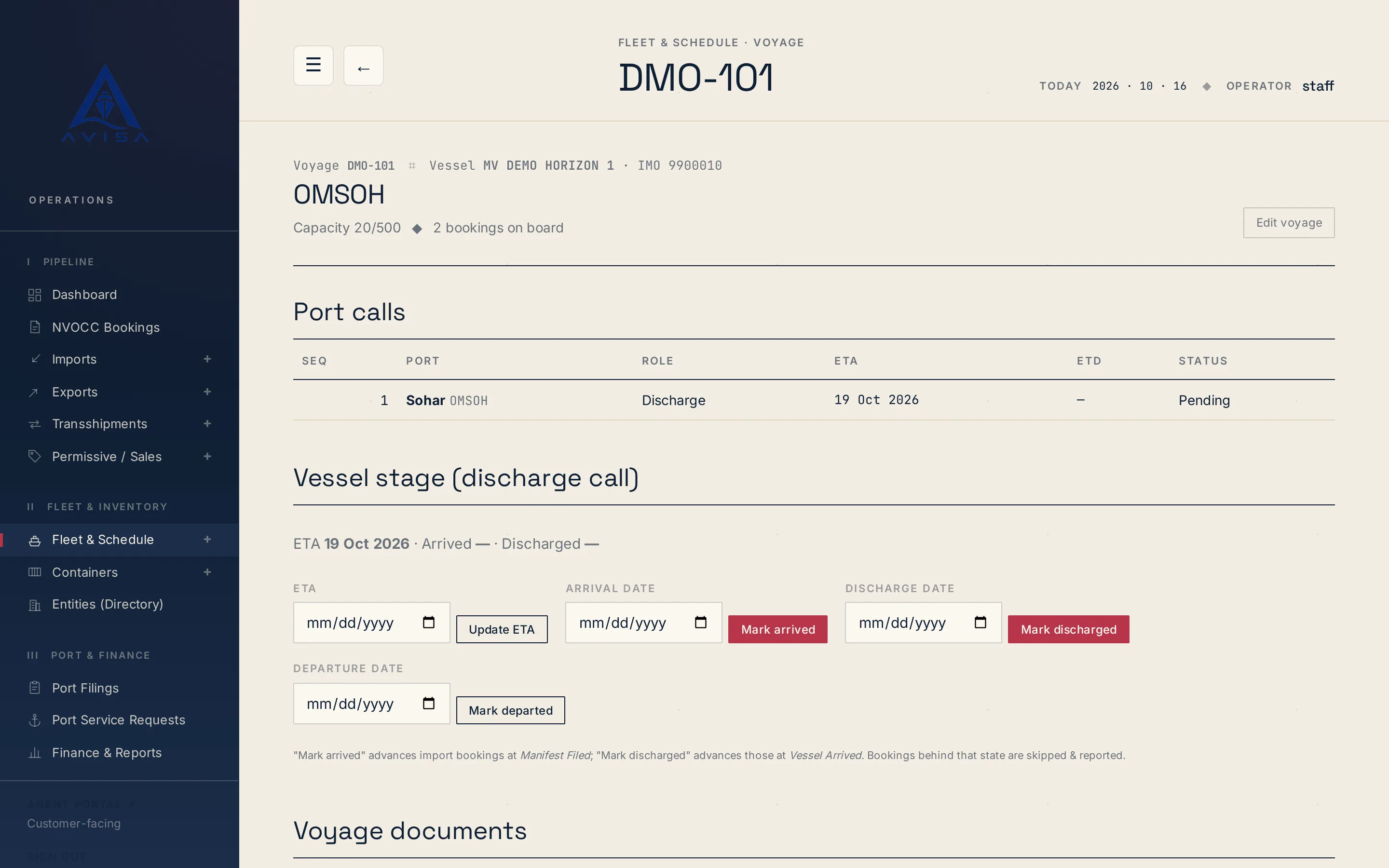
Bayan manifest
AVISA fills the Bayan cargo manifest workbook for each vessel arrival from your bookings, shows the filing deadline and marks land-transit cargo as Transit.
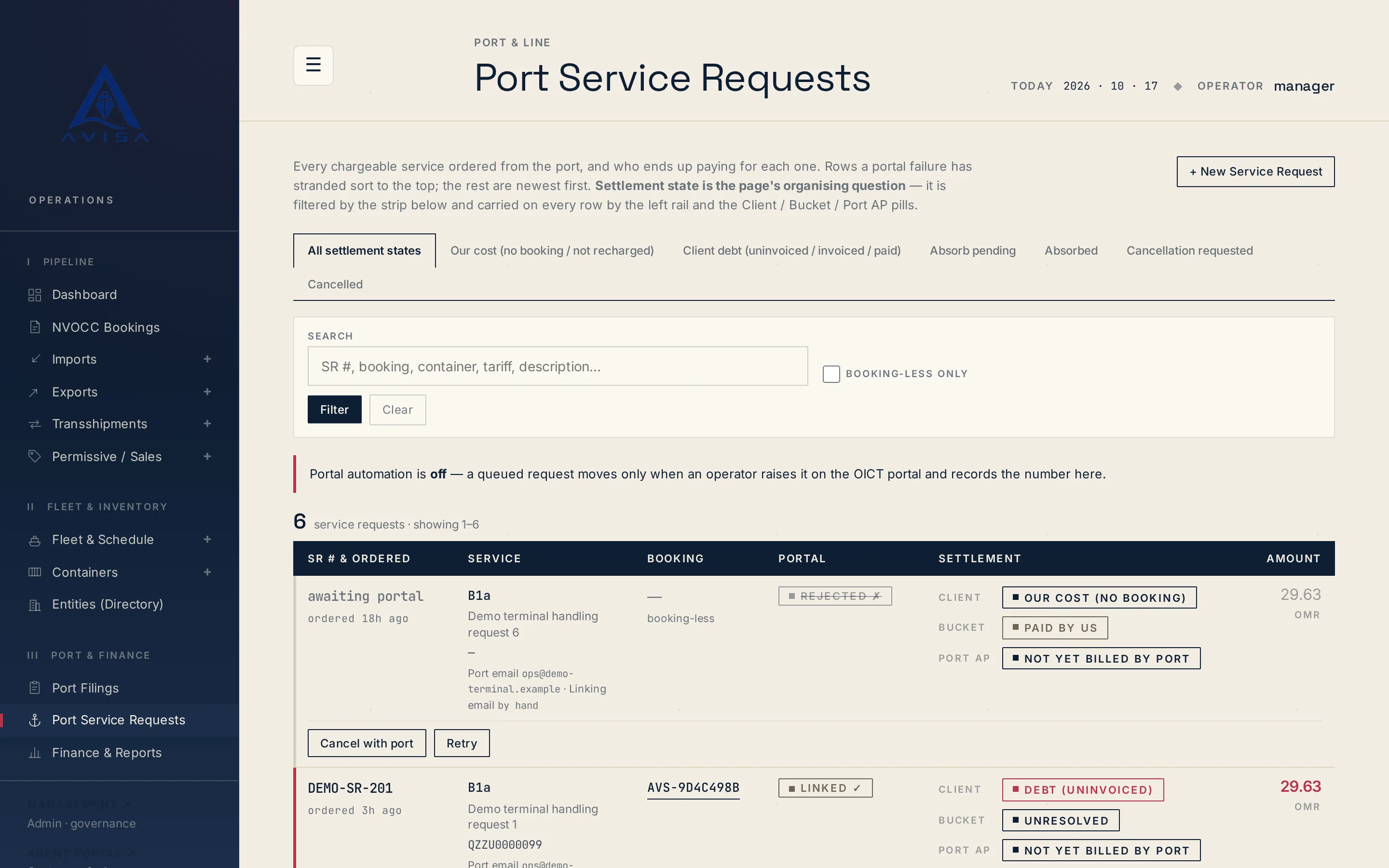
When your agency orders a chargeable service from the OICT terminal, AVISA records it as a service request. This part of AVISA is built on the OICT tariff book and the services offered on OICT's service request portal at Sohar. You raise a request from the booking page, or from a standalone page with or without a booking.
AVISA offers the terminal's own services by name. Where OICT's tariff prices the service, AVISA fills in the rate; otherwise you pick the tariff line. The request is priced from the tariff for the container size and quantity, including 45ft boxes. Your administrator keeps the tariff rates and the service mapping up to date.
The cost goes onto the booking as a charge for the client, unless you untick recharge, so it is there when you invoice the client. A request with no booking is tracked as your own cost. AVISA refuses a second request for the same service on the same container, unless you confirm it is a repeat.
One list shows who owes what for port services. Each request shows whether the client owes it, has paid it, or your agency bears it. You search the list by request number, container, service code or description.
Sometimes your agency pays a terminal charge itself rather than billing the client. Staff mark the request "paid by us", and the client's charge stays in place while it waits. A manager confirms it, and AVISA voids the client's charge with the reason recorded. If the decision changes, a manager undoes it: AVISA raises a fresh charge for the client at the original VAT rate, and the voided one stays in the history. A charge the client has already paid cannot be absorbed. Each step is recorded with who did it and when.
From the request, your team sends the port a linking email. It ties the request number to the booking and its containers, with your remarks, so the port attaches the request to the booking.
Cancelling takes two steps. An email asks the port to cancel, and once the port replies a manager confirms with the port's reference and any fee. While one of its service requests is unresolved, a booking cannot be cancelled.
Once your administrator switches automation on, AVISA raises queued service requests on OICT's portal by itself. The switch is off by default. A scheduled job works through the queue and does nothing while the switch is off; staff then raise each request on the portal and record its number.
Each run raises the queued requests and records the number OICT issues. AVISA then emails the port the linking note, and the request shows as linked. Before sending, it checks each request for a mapped service, proper container numbers, 20ft or 40ft boxes, and the inputs the portal asks for, so a 45ft box is priced in AVISA but not sent this way. It submits only the request types it has been checked against; anything else stays queued for your team to raise by hand.
When a submission may have reached OICT, AVISA does not send it again. It holds the request as "in doubt" for a person to check with the port. Requests that need a person, such as those in doubt or rejected, are pinned to the top of the list. For a rejected request, fix the cause and press Retry: the same request record is sent again, not a new one. If the portal still refuses it after the set number of attempts, AVISA voids the client's charge, or flags the request for a person if that charge is already on an invoice.
If you raised a request on the portal yourself, press "Raised on OICT portal" and type its number. Every step is logged and marked as done by AVISA or recorded on someone's word.
Service requests cover the OICT terminal only. AVISA cannot read requests back from the portal, and a cancellation is confirmed by hand once the port replies.
To see service requests on a booking like yours, request a demo.
AVISA fills the Bayan cargo manifest workbook for each vessel arrival from your bookings, shows the filing deadline and marks land-transit cargo as Transit.
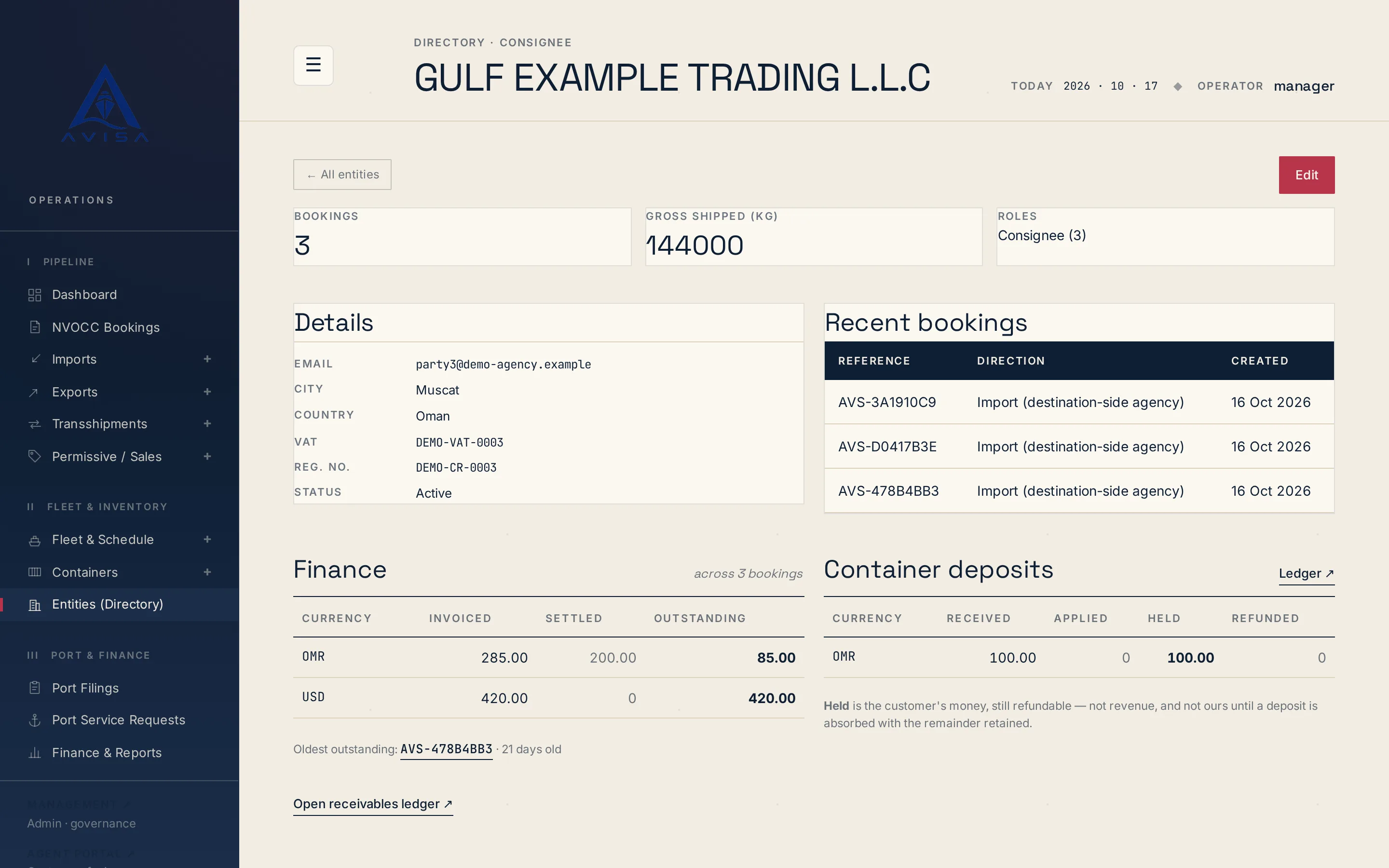
Keep each shipper, consignee and forwarder once, with VAT, registration number and address. Booking forms fill from it and likely duplicates are flagged.
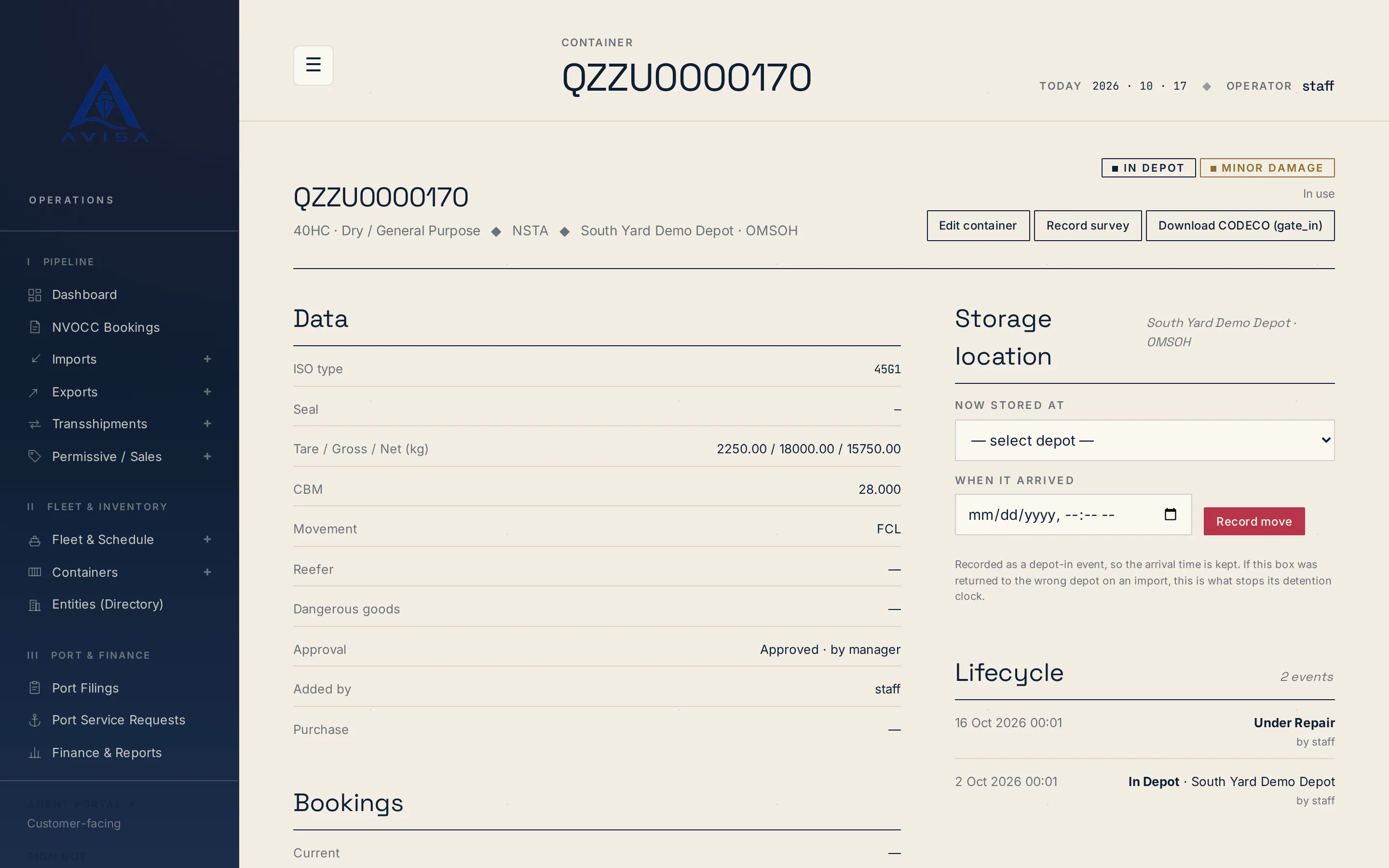
Download container repair estimates as DESTIM files and gate-in, gate-out or post-repair moves as CODECO files, built from your AVISA records. Download only.